
User Interface
Overview
Here is an overview of the main elements of the VoceVista user interface:
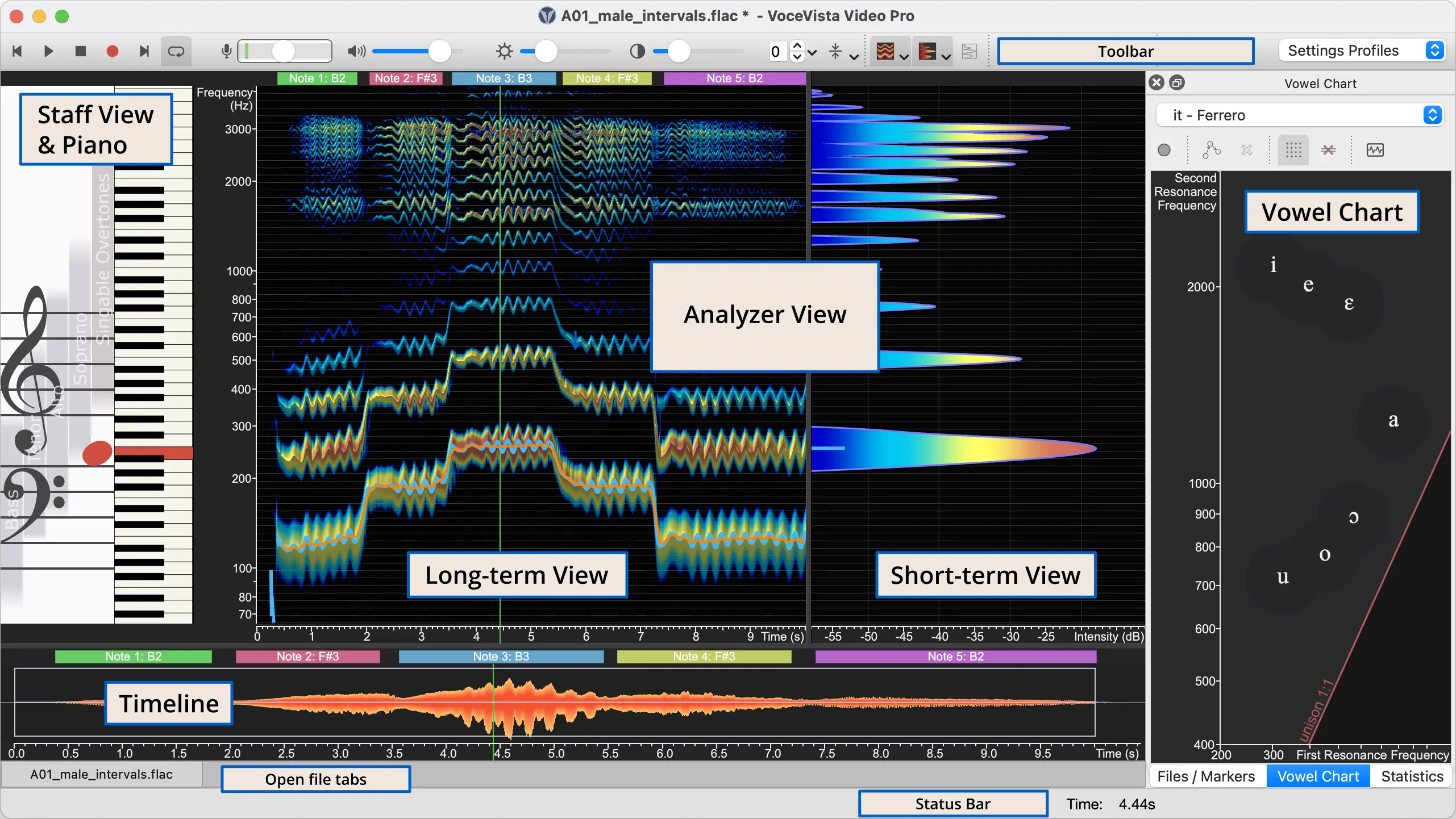
Staff View & Piano
The Piano is a playable keyboard. You can click on individual tones, or use Command+Click on a Mac or Control+Click on a PC to select entire chords and play them with the Play selected tones command.
The Staff View shows a musical staff. It also shows the current notes played on the piano. The colored areas in the background indicate the ambitus (the range from lowest to highest singable note) of the singing voices and of the singable overtones.
Analyzer View
This is the main view of VoceVista and contains output from the analyzer (such as spectrum, spectrogram, and pitch), as well as Note Sliders, rulers, markers, and frequency filters.
It is divided into two parts, the Long-Term view on the left, and the Short-Term view on the right side. The Long-Term view shows how the frequency content in the recording changes over time. The Short-term view shows the intensities of all frequencies in the recording at a specific point in time (which is at the location of the green time cursor line).
The Long-Term view can optionally show additional sub-views such as the Waveform, Vibrato Rate and Extent, and the EGG (Electroglottograph) History.
Timeline
The Timeline shows an overview of the entire recording or loaded audio file as a waveform. The Timeline also acts like a scrollbar and lets you navigate through a long recording by moving the current range slider with the mouse.
Vowel Chart
The Vowel Chart is one of several side panels that don’t belong to a specific file, but are part of the main window. The active side panel can be switched by clicking on the tabs underneath the vowel chart. The panels can also be detached or rearranged.
The Vowel Chart is a tool to visualize and listen to specific frequency pairs that are associated with certain vowels. You can click on the chart to hear the corresponding vowel chart to understand better what this means.
Open file tabs
Just like the tabs in a web browser, these tabs allow you to switch between open files in VoceVista. You can also right-click on a tab so see more actions, for example to arrange open files side-by-side.
Status Bar
The status bar shows context help and status information. If the mouse cursor points at something that can be clicked or manipulated with the mouse, the status bar will show details about the specific operations that you can perform.
If the mouse cursor is over the Analyzer View, the Status Bar will show the time, frequency, note name and intensity of the recording at the current mouse cursor position. The Status Bar also has a slider for the main output volume.