
Recording Settings
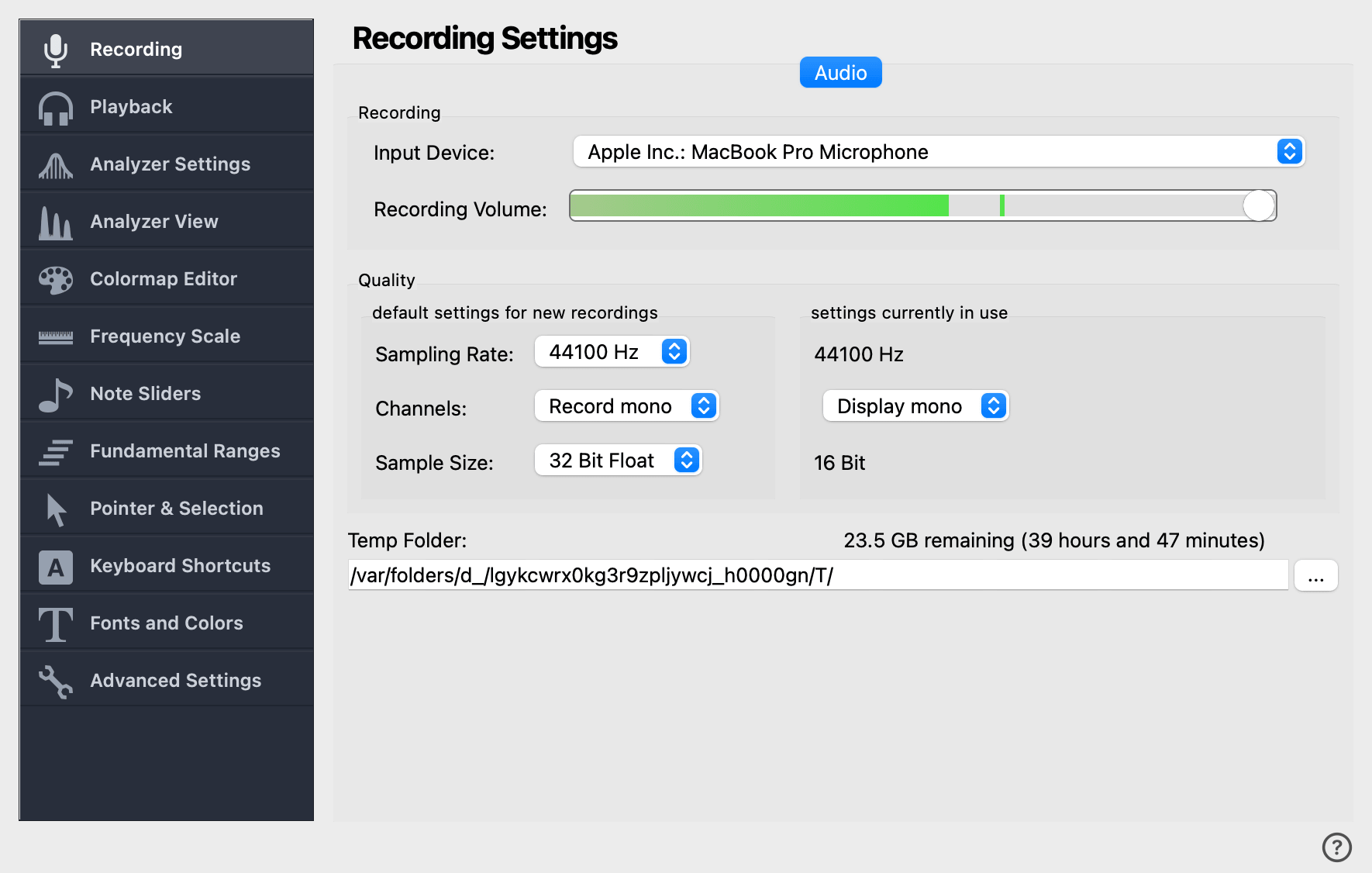
The Recording Settings page controls how VoceVista captures audio from your sound card: which device to record from, the input level, the audio format, and where the data is stored on disk.
Input Device
The audio line from which to record. If you have more than one sound card installed — for example, when using an external USB microphone — make sure the correct one is selected here.
This list can also include sources that capture the audio output of another application or of the whole system, so you can record what your computer is playing (a video call, a browser, a backing track). See Recording Audio from Another Application.
First Channel
Selects which physical input channel of a multi-channel audio device is used as the first channel of the recording. This control is only shown for devices with more than two inputs.
For example, if your audio interface has eight inputs and you are recording in mono, this lets you choose whether channel 1, 2, 3, … or 8 is the source. When recording in stereo, the selected channel becomes the left channel and the next channel becomes the right.
Recording Volume
Sensitivity of the selected microphone or input line. Adjust the slider so the level meter peaks high but never clips — clipping introduces artifacts in the spectrogram.
|
A clipped signal cannot be repaired in software. If the meter’s clip indicator lights up while recording, lower this volume and re-record. |
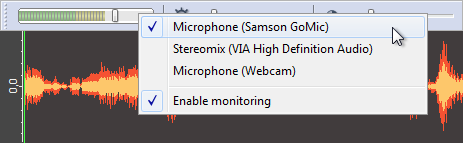
Recording source and volume can also be set through the input level meter on the toolbar. Drag the slider to change the volume, or right-click the meter to switch input source:
Enable ASIO (Windows only)
When checked, VoceVista uses ASIO drivers for audio input and output. ASIO offers lower latency than the default Windows audio backend, but it requires ASIO drivers provided by your audio interface manufacturer. Leave this off if you do not have an ASIO-capable device.
This control is hidden on macOS and Linux, where Core Audio and ALSA already provide low-latency audio.
Quality
|
The settings under default settings for new recordings can only be changed before any audio has been recorded into the current file. The format of an existing recording cannot be retroactively changed. To choose a new format, click first. |
Sampling Rate
The number of amplitude measurements (samples) per second taken from the recording source. The sampling rate determines the highest frequency that can be measured: a digital recording cannot accurately resolve frequencies above half its sampling rate. For example, at 11025 samples per second the analyzer can measure up to around 5500 Hz.
For most purposes a sampling rate of 44100 Hz is appropriate. When using the EGG, 48000 Hz often gives the best results.
Channels
Determines whether new recordings are stored internally as mono or stereo, and how the channels of the active recording are displayed. The left side of this section, default settings for new recordings, applies to recordings made from now on. Changing it does not affect files that are already open. The right side, settings currently in use, controls how the active file is displayed and can also be changed from the toolbar.
default settings for new recordings
- Record mono
-
Record a mono file with a single audio track.
- Record stereo
-
Record a stereo file with two audio channels, a left and a right channel.
- Record left / right stereo channel
-
Useful when a single mono microphone is connected to one channel of a stereo audio interface. Recording "mono" in that situation would mix the live channel with the empty channel that has nothing connected. Recording only the left or only the right channel avoids that mixing. + The result is saved as a mono file with a single channel.
- Record Audio left; EGG right / EGG left; Audio right
-
Record a stereo file in which one channel is interpreted as the audio signal from the microphone and the other as the Electroglottograph (EGG). + Available in VoceVista Pro.
settings currently in use
- Display mono
-
When a mono recording is active, only its single channel is available to display.
- Display mixed stereo
-
Display both channels of a stereo recording mixed together. The spectrogram then shows audio content from both channels.
- Display left / right stereo channel
-
Display only the left or right channel of a stereo recording.
- Display Audio left, EGG right / EGG left, Audio right
-
Interpret one channel as audio data and the other as EGG.
Sample Size
The number of bits used per sample. A higher bit depth increases dynamic range and storage size.
-
16 bit — standard CD quality, sufficient for direct analysis and the smallest on disk.
-
24 bit / 32 bit — useful when the recording will be edited or amplified later, or when the input has a very high dynamic range and contains quiet passages that need to be amplified after the fact.
Temp Folder
The folder where VoceVista stores incoming audio data while you record. Make sure the chosen drive has enough free space.
The label above the path field shows how much free space is available on that drive and how long that translates to at the current recording format. As a reference, a mono recording at 44100 Hz / 16 bit needs about 350 MB per hour (roughly half a CD).
Click the … button next to the path to browse for a different folder.