
Playback Settings
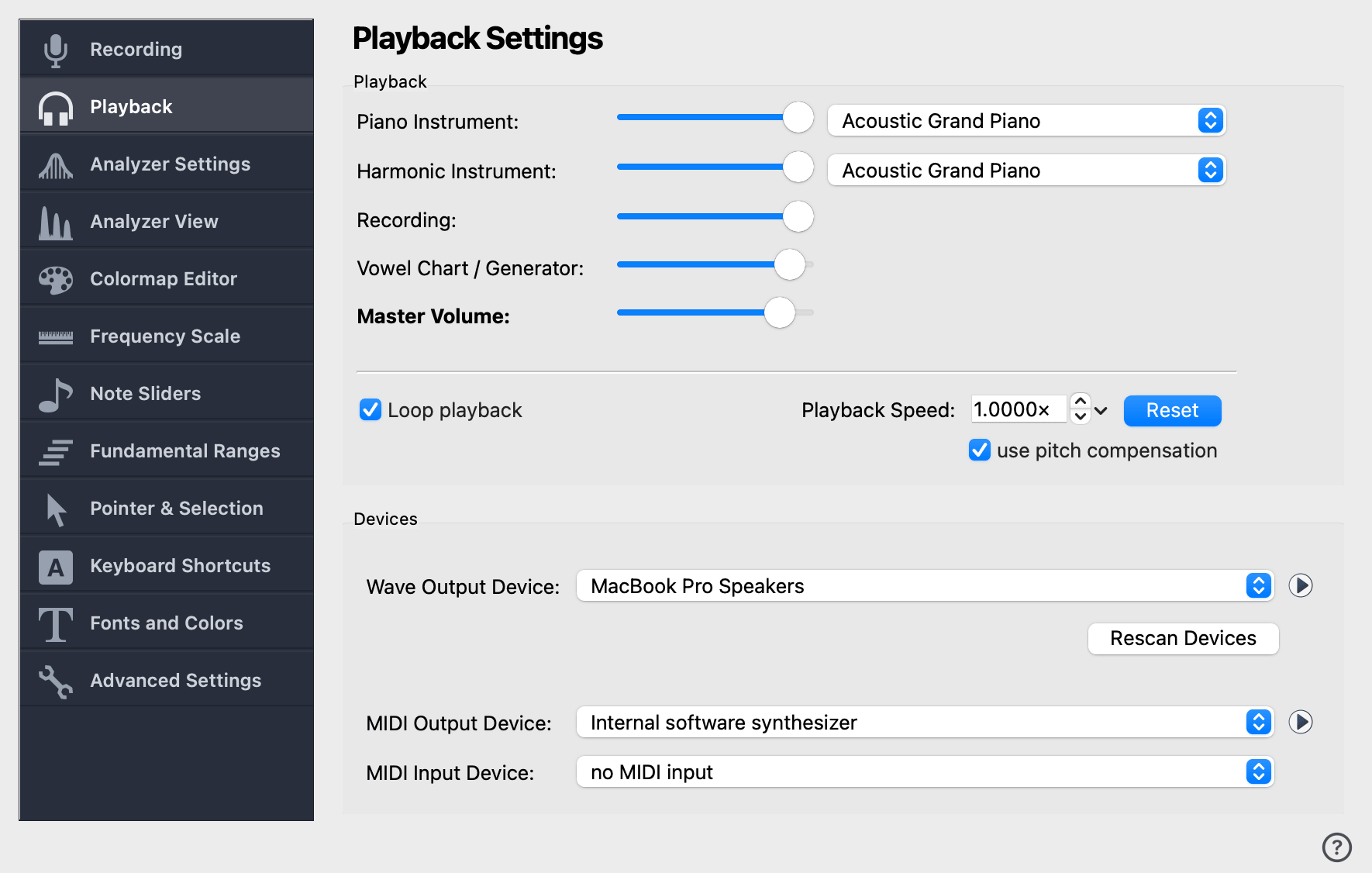
The Playback Settings page controls the instruments and volumes used for audio playback in VoceVista, and selects the wave and MIDI devices through which sound is sent.
Playback
This section sets the instruments used by the piano and the note sliders, and the individual volumes for each playback source. Each volume slider is independent, and the Master Volume slider scales all of them together.
Piano Instrument
Instrument for piano keys and for the fundamental of each note slider. You can choose the Sine Wave Generator (the first entry in the list) or any of the standard MIDI instruments:
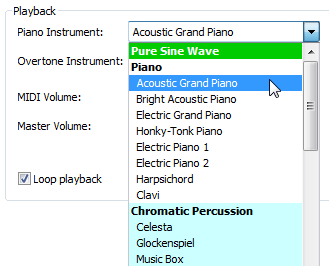
The Sine Wave Generator plays pure sine waves with high frequency accuracy. MIDI instruments play through the MIDI output device and may have less precise pitch, but provide a richer timbre.
The slider next to this combo box sets the volume of the piano / fundamental playback.
Harmonic Instrument
Instrument for the harmonics and subharmonics of the note sliders. Same instrument list as above (Sine Wave Generator or MIDI). The slider next to this combo sets the volume for harmonic and subharmonic playback.
Using the Sine Wave Generator for harmonics is recommended for accurate overtone tuning practice; MIDI instruments can sound richer but their overtones may not align cleanly with the fundamental.
Recording
Volume for playing back recorded audio content (the audio that was captured into the file). Adjust this slider relative to the piano and harmonic volumes when you want the recording louder or quieter against the played note sliders or piano keys.
Vowel Chart / Generator
Volume for the live audio produced by the Vowel Chart and the standalone Sound Generator. These tools synthesize sound on the fly as you move the mouse over them; this slider controls how loud that synthesized sound plays.
Master Volume
Master volume for all audio playback. This slider scales every other volume on this page (Piano, Harmonic, Recording, Vowel Chart) by the same factor, so you can quickly raise or lower overall output without disturbing the relative balance you have set up.
Loop playback
When checked, playback of the current selection — or of the whole file if there is no selection — repeats in a loop. When unchecked, playback stops at the end of the selection or file.
Playback Speed
Slows down or speeds up playback of recorded audio. A value of 1.000 plays at the original speed; values below 1 slow it down, values above 1 speed it up. The Reset button next to the field returns the value to 1.000.
use pitch compensation
When enabled, the pitch is preserved when playback speed is changed. When disabled, slowing playback also lowers the pitch (and speeding it up raises it).
Pitch-compensated playback is useful for studying a fast passage at half-speed without transposing it. Uncompensated playback can be useful to transpose a recording up or down by changing the speed.
Devices
This section selects the audio devices through which VoceVista sends sound. Each device combo has a circular Test button to its right that plays a short sample so you can verify the device is working.
Wave Output Device
The audio device used to play back recordings and the Sine Wave Generator. If you have multiple sound cards or audio interfaces, make sure the desired output is selected here.
Click the test button to the right of the combo to play a short test sound through the selected device.
MIDI Output Device
The MIDI device used to play the piano and note slider sounds when a MIDI instrument (rather than the Sine Wave Generator) is selected above. If your system has no MIDI synthesizer, the choices are limited to whatever the operating system provides.
Press and hold the test button to the right to hear a short note from the currently selected MIDI instrument.
MIDI Input Device
If you have an external MIDI keyboard connected, select it here. Pressing keys on the external keyboard then has the same effect as clicking on the on-screen piano view: the corresponding note is played through the MIDI output device.
Leave this set to No Input Device if you do not use an external MIDI keyboard.