
Export Data
VoceVista not only enables you to view detailed information about your recordings, you can also export the following data to a spreadsheet for further analysis:
Long-term data
-
pitch
-
mean pitch
-
vibrato
Short-term data
-
statistics result (pitch)
-
spectrum
-
long-term average spectrum
-
checked marker average spectra
-
smoothed spectra
-
marker list
Select to open the Export Data to Spreadsheet dialog box. The following screen appears.
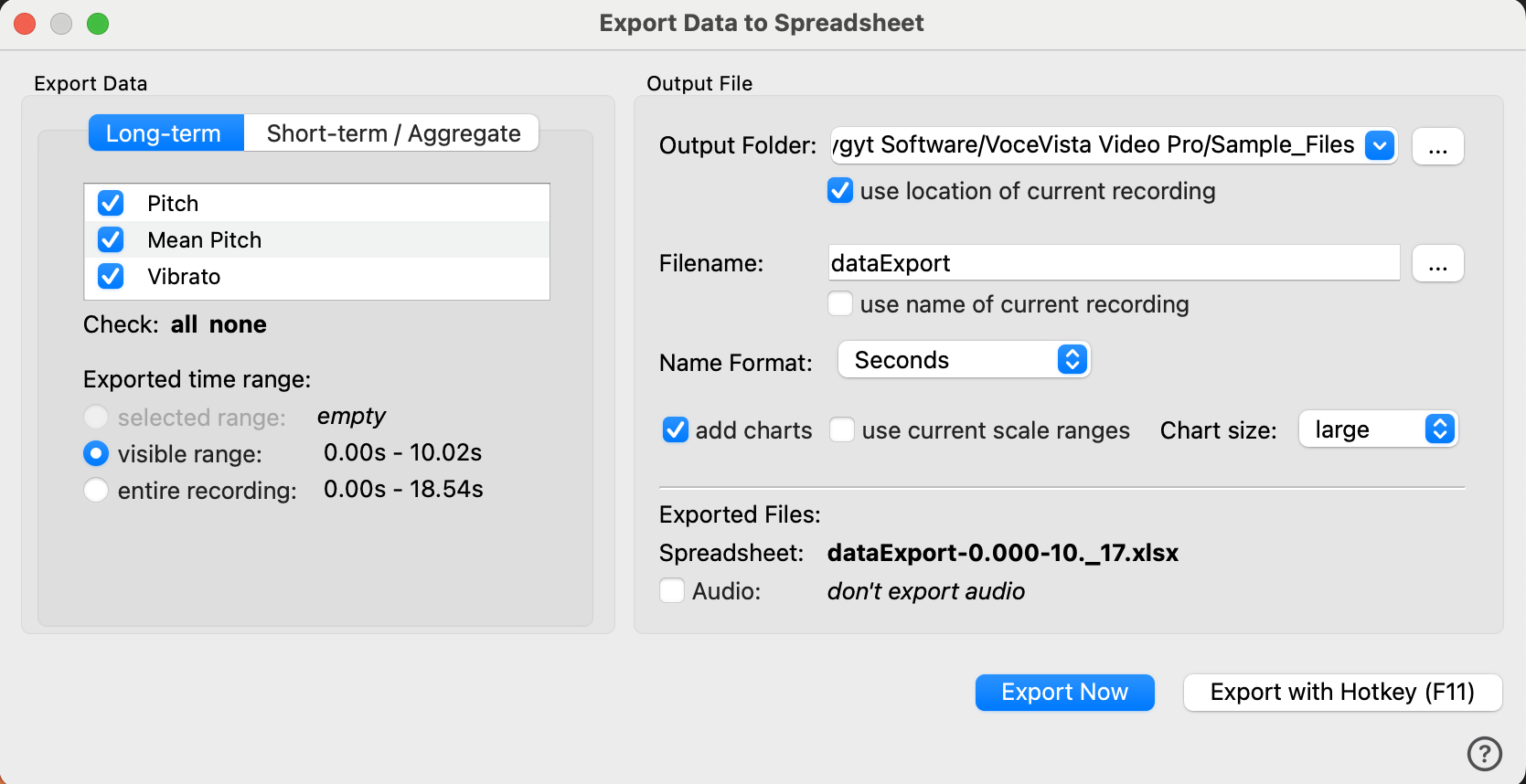
This window has two main sections. On the left side in the Export Data section, you select:
-
long-term and/or short-term data you want to export
-
the time range for the data
On the right side in the Output File section, you specify:
-
location to save the file
-
file name for the resulting image
-
format for the name of the resulting spreadsheet
-
whether to add charts and size
-
whether or not to export the audio at the same time
Export Data
The controls in this section of the dialog box enable you to select the types of data you want to export and the time range for the data.
There are two tabs near the top that reveal different potential data sources.
-
Select Long-term to select/de-select
-
pitch
-
mean pitch
-
vibrato
-
-
Select Short-term/Aggregate to select/de-select
-
statistics result (pitch)
-
spectrum
-
long-term average spectrum
-
checked marker average spectra
-
smoothed spectra
-
marker list
-
In the Exported time range section, you can choose one of the following time ranges for the data you want to export:
-
selected range (if you have made a selection in the recording)
-
visibile range (the time range that appears in the spectrogram)
-
entire recording
Output File
The controls the Output File section enable you to specify different information about the file(s) you are exporting including location, name, name format, chart selections, and whether to export the audio as well.
Output Folder
The path to the location where the spreadsheet will be saved appears in this field. Click the three dots to the right of the field to browse to a different location. Check use location of current recording to save the spreadsheet in the same folder as the recording.
Filename
The file name for the exported spreadsheet appears in this field. You can edit the file name directly, or click the three dots that appear to the right of the field to enter the file name and path for the exported file. Check use name of current recording to save the spreadsheet in the same folder as the recording.
Name Format
The Name Format drop-down enables you to select the information that the application will append to the exported spreadsheet so that the file names are unique.
-
Running number - the application adds the next number in a series, e.g. 1, 2, 3 …
-
Seconds - the application uses the time range information for the data from the original recording
-
Frames - the application uses the frames information for the data from the original recording.
| The Seconds and Frames options are only available if you choose selected range or visible range as the exported time range. |
Charts
VoceVista enables you to create charts from the data that appear in the exported spreadsheet.
-
add charts - Check this box to include charts for the data you selected to export.
-
use current scale ranges - Check this box to use the scale ranges for the data your are exporting from your recording. If you leave the box empty, the application will attempt to determine the best scale to use for the charts based on the data you are exporting. This may result in a chart that is easier to analyze since it doesn’t include ranges that are outside your data results. You must check add charts in order to check this box.
-
Chart size - If you are adding charts to the spreadsheet, select the chart size (small, medium, or large) from the drop-down list.
Exported Files
The name of the file that will be exported appears in this section of the Export Data to Spreadsheet dialog box next to Spreadsheet:
Check the Audio box to export the audio source for the data at the same time as you export the data. When you export the data, VoceVista creates a .wav file with the audio in the same location as the spreadsheet. The spreadsheet and audio files will have the same name and different extensions (.wav for the audio file, .xlsx for the spreadsheet).
Export Now
After you have made all of your selections, press Export Now to create the spreadsheet (and audio file, if selected).
Export with Hotkey
If you want to save your current settings and bypass the Export Data to Spreadsheet dialog box every time you want to export the data, click Export with Hotkey. Now, every time you press F11 (configurable through Keyboard Shortcuts on the Settings dialog), the application creates a spreadsheet using the saved settings.