
Release Notes
What's new, improved, and fixed in each release of VoceVista. Releases before 6.0 are listed under the name in use at the time, VoceVista Video.
VoceVista 6.0
Draft / stub. Preliminary release notes for the upcoming VoceVista 6.0, based on the launch announcement. Flesh out each section, add screenshots, confirm per-edition availability, and set the final release date before publishing.
We are finally putting the Video in “VoceVista Video”. Version 6.0 makes video a first-class part of the application: open and play a video in sync with the sound analysis, step through it frame by frame, and make light timeline edits — then record the playback, including the spectrogram itself, as a precise video.
Highlights of this release:
- Fully integrated video recording, playback, and editing
- New: record the played-back spectrogram as a video
- Dark mode support
- Native touch gestures on macOS touchpads: pinch-to-zoom and kinetic scrolling
- Simultaneous display of stereo tracks in the Waveform and Timeline
- New edition names: VoceVista Basic, VoceVista Video, and VoceVista Pro
New Edition Names
With 6.0 all three editions carry the VoceVista name:
| Edition | Formerly | What it adds |
|---|---|---|
| VoceVista Basic | Overtone Analyzer | Real-time pitch and spectrum analysis |
| VoceVista Video | VoceVista Video (unchanged) | Video, Frequency Filters, side-by-side comparison, Vowel Chart |
| VoceVista Pro | VoceVista Video Pro | High-resolution measurement, Markers, Statistics, LTAS, Vibrato Analysis, EGG |
“VoceVista” on its own now refers to the application as a whole. The top edition drops “Video” from its name because every edition from VoceVista Video up includes the video features. Existing licenses keep working: an Overtone Analyzer license activates VoceVista Basic, and a VoceVista Video Pro license activates VoceVista Pro.
New Features: All Editions
Dark Mode
VoceVista Video now supports a dark interface theme.
Native macOS Touch Gestures
On macOS touchpads, you can now pinch-to-zoom and use kinetic (inertial) scrolling natively.
Stereo Tracks in the Waveform and Timeline
The Waveform and Timeline can now display both stereo channels at once, instead of a single combined track.
New Features: VoceVista Video and Higher
Fully Integrated Video
Video recording, playback, and editing are now built in. Open a video and play it in sync with the sound analysis; seek and single-step frame by frame in both directions; zoom, pan, and crop the image; and trim, cut, copy, and paste on the timeline. It is a player for inspecting a performance, not an editing workstation.
Record the Spectrogram as a Video
Record the played-back spectrogram (the analyzer view) as a video while a selected time range plays — effectively an internal screencast. Because it is rendered internally rather than captured from the screen, the resulting video has a precise, constant frame rate regardless of how fast the host computer is.
New Features: VoceVista Pro
Improvements
Fixes
VoceVista Video 5.11
This update brings significant improvements to all editions of VoceVista Video. Under the hood, we’ve upgraded the graphics backend to lay the groundwork for future technical improvements (including running on iPad), while also boosting performance, visual quality, and driver compatibility.
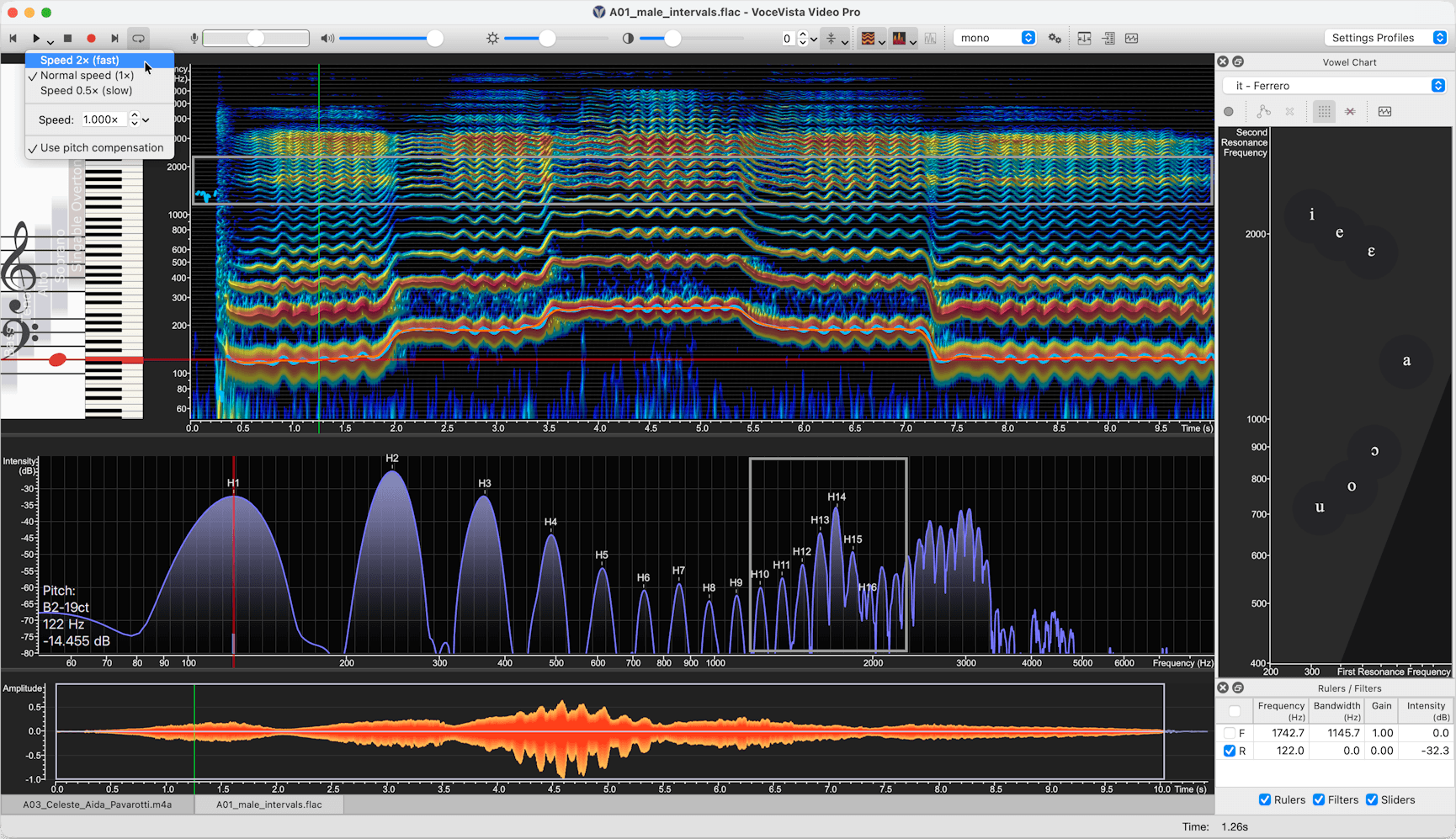
Highlights of this release:
- Stacked horizontal spectrum layout
- Semi-transparent gradient fill for the Spectrum
- Reverse playback
- Slow-motion / fast playback (VoceVista Video Pro)
- Filter List View (VoceVista Video Pro)
- Analyzer Settings improvements: more varied and precise control over the Spectrum and Pitch time windows, with the option to unlink them
New Features: All Editions
Reverse Playback
Analyze phonetic detail or vocal onsets by playing audio in reverse.
- Highlight a selection, or make no selection to reverse the entire file.
- Select Edit > Reverse, then press Play.
Stacked Horizontal Spectrum
A new layout option that lets the Short-term view span the full width of the Long-term view, giving you higher visual resolution for harmonic analysis.
- Quick toggle: click the down arrow next to the Short-term view button on the toolbar and choose Horizontal Spectrum.
- Settings: go to Settings > Analyzer View > Acoustic and select Horizontal. Make sure Below Long-term view is checked to stack the views vertically; deselect it to place them side-by-side.
Because the stacked horizontal spectrum suits most workflows better, the spectrogram orientation buttons are now hidden by default. They can be re-enabled in the toolbar settings if you want quick access to them.
Wideband Spectrogram Preset
A new preset makes it easy to switch between narrowband and wideband spectrogram views without manually changing FFT settings.
Gradient (Semi-Transparent) Spectrum Fill
A semi-transparent gradient fill is now available for the Short-term Spectrum, improving visibility of the underlying harmonic intensity lines.
- Open Settings > Analyzer View and check Use gradient fill.
- Available for all three spectrum types that use a fill.
Separate Spectrum and Spectrogram Time Windows
The Analyzer Settings now offer more varied and precise control over the time windows used for the Spectrum and the Spectrogram, and you can unlink the two so each is optimized independently. For example, you can prioritize temporal precision in the spectrogram while keeping ultra-high frequency resolution in the spectrum.
- Open Settings > Analyzer Settings.
- Deselect Link time windows. Separate controls appear for the Spectrogram and the Spectrum.
Waveform Improvements
- The Waveform display now shows background grid lines for easier amplitude reference.
- A new command resets the Waveform amplitude zoom in a single click.
Smarter Spectrogram Background Lines
Background lines on the Spectrogram now offer multiple display options: piano notes, frequency increments, or following the ticks of the associated scale. Pick whichever reference best suits your analysis.
Refreshed Translations and Tooltips
Translations and tooltips have been thoroughly revised throughout the application for clarity and consistency.
New Default Keyboard Shortcuts
Many commands that previously had no keyboard shortcut now ship with a sensible default, speeding up common actions.
New Features: VoceVista Video and Higher
Adjustable Frequency Filter Size
Fine-tune the selectivity of your frequency filters by adjusting the filter size.
- Behavior: higher values narrow the effective range for more precise filtering; lower values widen it.
- Action: Settings > Advanced Settings > Frequency Filters > Filter size.
- Note: higher (narrower) values may introduce slight latency during real-time playback. Changes apply automatically to all active filters.
Insert Filter at Cursor Position
You can now insert a new frequency filter directly at the current cursor position, instead of always at a default location.
Refined Visual Design for Frequency Filters
Frequency filters have a cleaner visual design, including adjustable line thickness for better visibility on high-resolution displays or with complex multi-layer spectrograms.
- Open Settings > Fonts and Colors > Colors > Rulers and Filters > Frequency Filter Frame Line and enter a higher value to thicken the line.
Cleaner Vowel Chart Defaults
Resonance rulers are no longer shown by default. They appear once you click the Vowel Chart, keeping the interface uncluttered until you need them.
Vowel Chart Aspect Ratio Lock
To preserve the scientific integrity of your F1 / F2 data, the Vowel Chart now includes an aspect ratio lock. This prevents the frequency coordinates from distorting when the window is resized.
- Default: enabled.
- Quick toggle: right-click the Vowel Chart and choose Lock Aspect Ratio.
- Global setting: Settings > Advanced Settings > Vowel Chart > Lock aspect ratio.
New Features: VoceVista Video Pro
Variable Playback Speed
Slow down or speed up playback to analyze rapid articulatory movements or subtle vibrato in detail.
- Pitch compensation: enable to keep the pitch stable while changing speed (time-stretching). Disable to allow the pitch to rise or fall naturally with the speed (resampling).
- To use: select a portion of the recording, or make no selection to apply to the entire file.
- Action: click the down arrow between the Play and Stop buttons, then choose a preset or enter a custom value.
- Global control: speed and pitch compensation can also be managed via Settings > Playback.
Filter List View
A new dedicated list view for managing your frequency filters. See all filters at a glance, edit them, and toggle them on or off without hunting through the spectrogram.
Edit Marker Range Numerically
Marker ranges can now be set by entering precise numeric values in addition to dragging, which is useful when you need exact, repeatable selections.
Mini-EGG Display
A new compact display that visualizes the relationship between the EGG Wavegram and the glottal cycle, giving a clearer view of glottal behavior at a glance.
Stacked Short-Term EGG Layout
A new layout option places the Short-Term EGG above the Short-Term Audio, making the visual organization of the EGG and audio views more consistent.
Improvements
- Gaussian FFT window function added for compatibility with Praat, useful when cross-referencing analysis between the two applications (Settings > Analyzer Settings).
- On macOS, VoceVista now prevents accidental running directly from the mounted DMG installer, avoiding the confusion that can cause.
Fixes
- The unfiltered spectrum no longer appears when all filters are deleted or disabled.
- Removed the alpha channel from the color table on the popup color dialog.
- Fixed rounding inconsistencies between cursor lines on scales and on the spectrogram.
- Restored the Level Meter context menu for picking the input device on devices that don’t expose a software volume control.
VoceVista Video 5.10.0
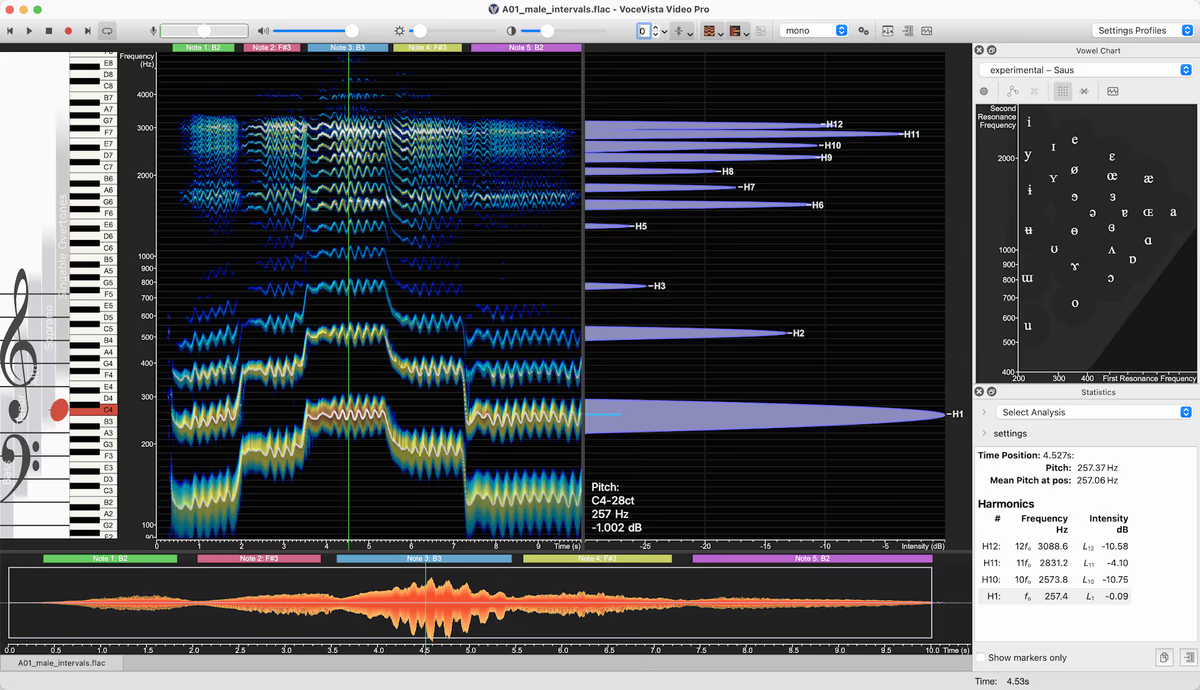
This update brings significant improvements to VoceVista Video with enhanced compatibility for the latest operating systems, new visualization features for spectral analysis, and refined tools for sound generation and frequency filtering. Key highlights include labeling of spectral harmonics, redesigned frequency filters, and spectral peak overlays on the spectrogram in VoceVista Video Pro.
New Features
All Editions
- Visual Appearance and Display
-
- label spectral harmonics
- Audio Input/Output
-
- allow selecting input channel from multi-channel devices
- timeline amplitude scale
- System and Performance
-
- improved compatibility with macOS Tahoe
- improved compatibility with Windows 11
- Settings and Configuration
-
- time resolutions of spectrum and pitch
- User Interface
-
- set slider frequency as text
- move selection
- Sound Generator
-
- new normalization options, don't normalize magnitudes by default
- step modifier: construct scales with volume steps synchronized with the pitch steps
VVV edition and higher
- Export
-
- Export Image can include Vowel Chart
- Frequency Filters
-
- New visual design for Frequency Filters
- solo filter button
- Vowel Chart
-
- new vowel chart profiles: experimental evenly spaced vowels, and "no vowels" for empty vowel chart, and new us profiles by Hillenbrand
VoceVista Video Pro
- Visual Appearance and Display
-
- display spectral peak overlays on spectrogram
- File Management
-
- remove selected files from marker list
- Analysis Features
-
- scientific harmonic notation in statistics panel
Improvements
- Visual Appearance and Display
-
- mouse wheel on short-term view will zoom frequency range
- timerange slider drawing - increase reticule thickness, draw time range slider for very short files
- multi monitor support
- rescale UI when screen changes
- Analysis Features
-
- improve pitch detection accuracy (this also improves Vibrato detection)
- Vibrato Analysis
- draw vibrato cycles from beginning to end boundary, instead of center to center. This doesn't change the analysis result, but makes the vibrato view appear to have more content.
- Analysis Type: harmonics
- improve excel output
- curve smoothing
- performance improvements
- show spectrum time range in statistics panel
- remove stale entries from marker list
- FFT Window functions
- make Dolph Chebyshev the new default window function
- add Hann-Poisson
- Export
-
- export data
- save audio file for short-term spectrum content
- make export data dialog modeless
- make ImageExport modeless
- turn off confirmation messagebox for image export
- export data
- File Management
-
- file types for open file dialog
- add .aif and .m4v as supported file types to open dialog
- always clear cache when build number changes
- remember last saved file type
- file types for open file dialog
- System and Performance
-
- Pin app to taskbar: support for Windows 11 24H2
- update experience
- auto-close the upgraded notice after 20 seconds
- benchmark tool - add more benchmarks
- User Interface
-
- staff view context menu entry to track current note
- piano context menu
- staff view context menu
- Settings and Configuration
-
- Fonts and Colors dialog
- allow thickness adjustment of time cursor line
- factory settings
- review predefined toolbars
- default profiles come first
- Fonts and Colors dialog
- Sound Generator
-
- modulation curves
- for sine wave and noise modifiers, use a default frequency of 1.0 Hz (instead of 5.0) for secondary modifiers
- use cents for frequency gradient modifiers
- modulation curves
Fixes
- Visual Appearance and Display
-
- color legend - fix some sizing problems
- sync spectrogram and time scale
- review orientation with y=time
- cursor jumps after stopping playback
- project tabs misaligned in splitview
- scale dependencies in window layout: prevent Amplitude scale from being clipped
- Export
-
- imageexport shows wrong area for horizontal spectrum + scales
- File Management
-
- stereo channel selection not used during loading
- User Interface
-
- remove invalid recent file entries after failed open
- crash when pressing space on open menu
- timescale cursor doesn't work with horizontal spectrogram
- crash when zooming in timeline too far
- some slider labels are empty
- C0 piano key not playable
- Settings and Configuration
-
- options dialog layout - improve visual appearance and fix layouting bugs
- update AnalyzerInputOptionsDialog when sampling rate changes
- Audio Input/Output
-
- crash when closing app during playback
- Sound Generator
-
- click track generator - fix some calculation errors
- pressing space after clicking on "Generate" doesn't stop playback
- Vowel Chart
-
- Vowel chart is too wide with long custom profile name
VoceVista Video 5.9.2
Patch release with the following improvements and fixes.
Changes and Fixes
- The media downloader component is run in a sandboxed environment with limited system access for added security.
- Fixed several problems with saving edited compressed files such as mp3 and flac.
- Always show the file progress dialog, even when opening many small files together.
- Fixed potential crash when closing the app.
- Serialize position of the normalize dialog.
VoceVista Video 5.9.1
New user interface languages
- Japanese
- Korean
Fixes
- fix possible crash when converting mono to stereo
- various minor fixes
Earlier releases
- VoceVista Video 5.9.0
- VoceVista Video 5.8.0
- VoceVista Video 5.7.0
- VoceVista Video 5.6.3
- VoceVista Video 5.6.2
- VoceVista Video 5.6.1
- VoceVista Video 5.6.0
- VoceVista Video 5.5.0
- VoceVista Video 5.4.2
- VoceVista Video 5.4.1
- VoceVista Video 5.4.0
- VoceVista Video 5.3.4
- VoceVista Video 5.3
- VoceVista Video 5.2.0
- VoceVista Video 5.1.0
- VoceVista Video 5.0.2