
Scrolling and Zooming
VoceVista enables you to easily change parameters directly from the user interface and see those effects immediately. Some of the most important ones you can change are the:
-
time range
-
frequency range
-
the dynamic range of the spectrogram and spectrum
-
the dynamic range of the waveform and timeline
The fastest two methods to change these parameters are to hover your mouse over an item and either:
-
scroll (shift its range) by clicking and dragging
-
zoom (expand or compress its range) by using one of the following:
-
a zoom gesture
-
the mouse wheel
-
the 1 and 2 keys
-
Note: If you don’t have a mouse wheel, you can hover your mouse over an item and use the two-finger gesture for scrolling and zooming on your touchpad. For most computers, put two fingers on the touchpad and move them both up or down.
Interactive areas
The following image shows all areas that you can scroll or zoom:
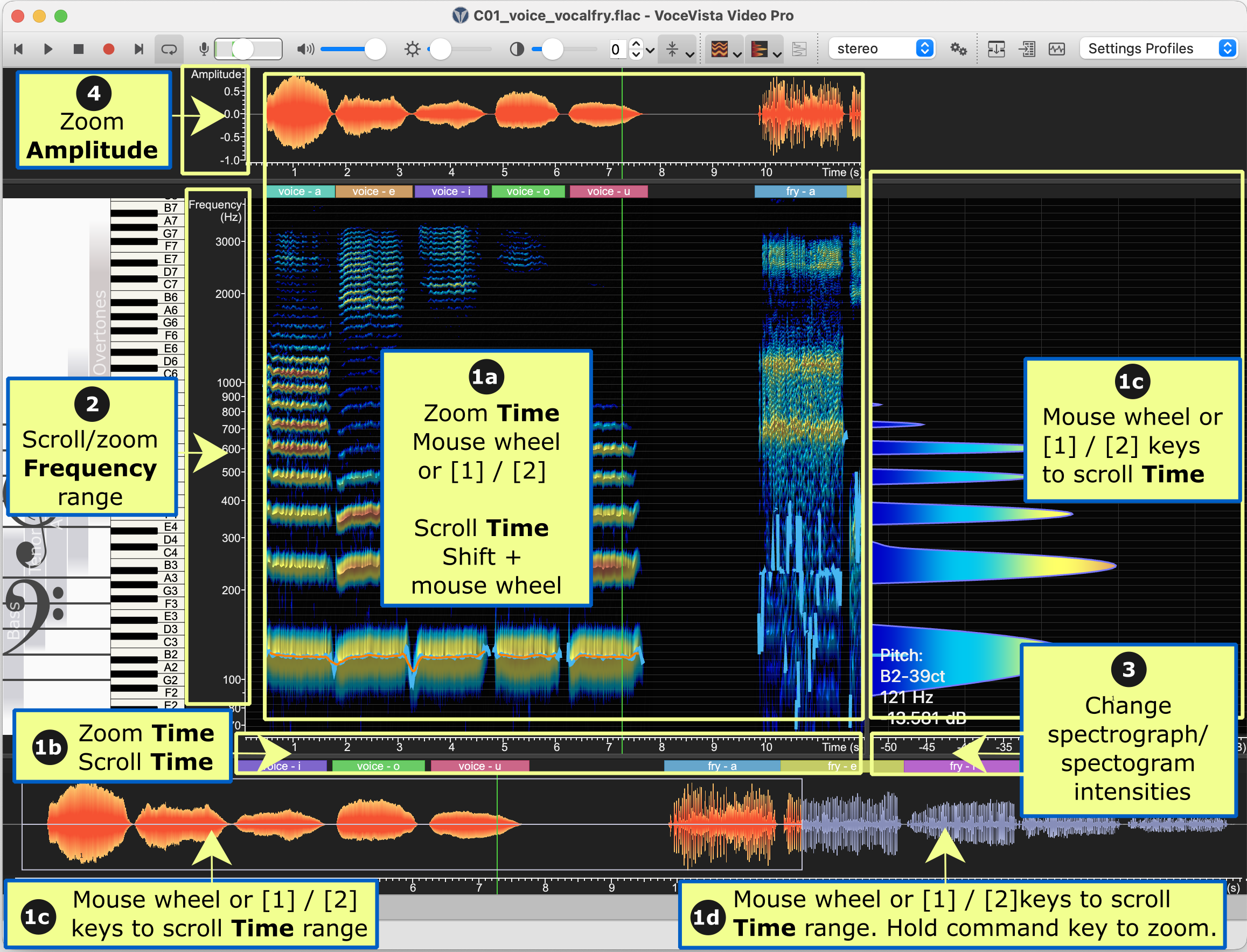
1) Time Range
You can easily change the visible time range using the following methods:
1a Spectogram
-
a zoom gesture
-
the mouse wheel
-
the 1 and 2 keys
1b Time range (use to select with greater precision)
-
click and drag to scroll
-
a zoom gesture
-
the mouse wheel
-
the 1 and 2 keys
1c Timeline selection (use to navigate quickly)
-
click and drag right/left edges to zoom time range
-
click and drag selection to scroll time range
-
scroll the timeline using:
-
a zoom gesture
-
the mouse wheel
-
the 1 and 2 keys
-
1d Timeline (use to navigate quickly)
-
click anywhere outside a timeline selection to scroll there
-
scroll the timeline using:
-
a zoom gesture
-
the mouse wheel
-
the 1 and 2 keys
-
You can also zoom using the menu by clicking View and then selecting one of the four options at the top (Zoom In, Zoom Out, Zoom to Fit Selection, or Zoom Out Fully) or pressing the number that corresponds with each.
Adding Markers to a file enables you to bookmark specific parts of a recording so that they are easy to find in the future. You can then move between markers by clicking Markers > Jump to next marker or Jump to previous marker.
2) Frequency Range
You can easily scroll or zoom the frequency scale. Hover over the frequency values and:
-
Scroll by clicking and dragging the frequency values
-
Zoom by using a zoom gesture or pressing the 1 and 2 keys
Set precise values for this scale on the Frequency Scale settings page, or on the Scale Range toolbar (this toolbar is not shown by default and needs to be enabled).
3) Dynamic Range
The displayed dynamic range determines the range of intensities shown on spectrogram and spectrum. Access the Colormap editor on the Settings dialog box to change all of the values for the dynamic range.
To quickly change basic settings for the dynamic range:
-
Hover over the Intensity scale and
-
Scroll by clicking and dragging the frequency values
-
Zoom by using a zoom gesture or pressing the 1 and 2 keys
-
-
Drag the brightness and contrast sliders on the toolbar
4) Waveform / Timeline Amplitude Range
If enabled (View > Waveform), the amplitude range appears above the spectogram and displays the waveform.
When you hover over the waveform, the following zooming actions are available similar to the spectrogram.
-
a zoom gesture
-
the mouse wheel
-
the 1 and 2 keys
When you hover over the amplitude range to the left of the waveform, the following actions enable you to change the intensity of the displayed waveform.
-
a zoom gesture
-
the mouse wheel
-
the 1 and 2 keys
5) Timeline zoom
You can zoom the Timeline by hovering over the timeline, pressing Command (Ctrl for Windows) and then using any of the following actions:
-
a zoom gesture
-
the mouse wheel
-
the 1 and 2 keys
You can also enable the Timeline Zoom Slider in the View menu and use that to change the Timeline zoom.
To reset the zoom level of the Timeline, click View > Zoom out fully, or press the 4 key.
Commands
The following table lists the mouse commands for scrolling and zooming, and where they can be used:
| Command | Effect | Can be used on |
|---|---|---|
Left click and drag |
scroll |
any scale (Time Scale, Frequency Scale, Intensity Scale, Amplitude Scale) |
Use mouse wheel |
zoom |
any scale, Spectrogram |
Use two-finger scroll gesture on touchpad |
||
Press the 1 and 2 keys |
||
Shift + mouse wheel |
scroll time range |
Spectrogram |
Ctrl + mouse wheel |
zoom the Timeline View (instead of zooming the time range of the Spectrogram) |
Spectrogram, Timeline |