
VoceVista Video 5.11
This update brings significant improvements to all editions of VoceVista Video. Under the hood, we’ve upgraded the graphics backend to lay the groundwork for future technical improvements (including running on iPad), while also boosting performance, visual quality, and driver compatibility.
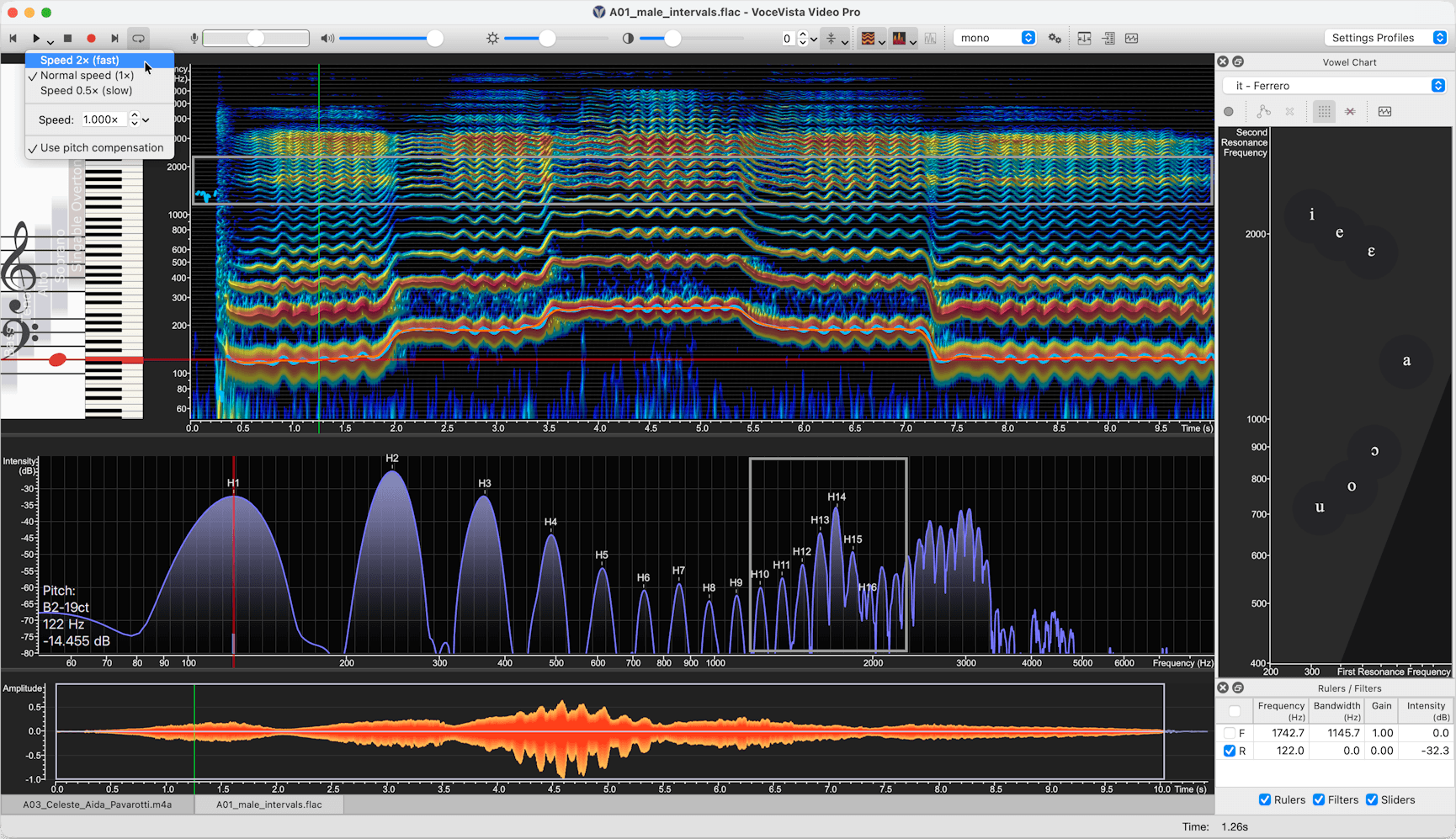
Highlights of this release:
- Stacked horizontal spectrum layout
- Semi-transparent gradient fill for the Spectrum
- Reverse playback
- Slow-motion / fast playback (VoceVista Video Pro)
- Filter List View (VoceVista Video Pro)
- Analyzer Settings improvements: more varied and precise control over the Spectrum and Pitch time windows, with the option to unlink them
New Features: All Editions
Reverse Playback
Analyze phonetic detail or vocal onsets by playing audio in reverse.
- Highlight a selection, or make no selection to reverse the entire file.
- Select Edit > Reverse, then press Play.
Stacked Horizontal Spectrum
A new layout option that lets the Short-term view span the full width of the Long-term view, giving you higher visual resolution for harmonic analysis.
- Quick toggle: click the down arrow next to the Short-term view button on the toolbar and choose Horizontal Spectrum.
- Settings: go to Settings > Analyzer View > Acoustic and select Horizontal. Make sure Below Long-term view is checked to stack the views vertically; deselect it to place them side-by-side.
Because the stacked horizontal spectrum suits most workflows better, the spectrogram orientation buttons are now hidden by default. They can be re-enabled in the toolbar settings if you want quick access to them.
Wideband Spectrogram Preset
A new preset makes it easy to switch between narrowband and wideband spectrogram views without manually changing FFT settings.
Gradient (Semi-Transparent) Spectrum Fill
A semi-transparent gradient fill is now available for the Short-term Spectrum, improving visibility of the underlying harmonic intensity lines.
- Open Settings > Analyzer View and check Use gradient fill.
- Available for all three spectrum types that use a fill.
Separate Spectrum and Spectrogram Time Windows
The Analyzer Settings now offer more varied and precise control over the time windows used for the Spectrum and the Spectrogram, and you can unlink the two so each is optimized independently. For example, you can prioritize temporal precision in the spectrogram while keeping ultra-high frequency resolution in the spectrum.
- Open Settings > Analyzer Settings.
- Deselect Link time windows. Separate controls appear for the Spectrogram and the Spectrum.
Waveform Improvements
- The Waveform display now shows background grid lines for easier amplitude reference.
- A new command resets the Waveform amplitude zoom in a single click.
Smarter Spectrogram Background Lines
Background lines on the Spectrogram now offer multiple display options: piano notes, frequency increments, or following the ticks of the associated scale. Pick whichever reference best suits your analysis.
Refreshed Translations and Tooltips
Translations and tooltips have been thoroughly revised throughout the application for clarity and consistency.
New Default Keyboard Shortcuts
Many commands that previously had no keyboard shortcut now ship with a sensible default, speeding up common actions.
New Features: VoceVista Video and Higher
Adjustable Frequency Filter Size
Fine-tune the selectivity of your frequency filters by adjusting the filter size.
- Behavior: higher values narrow the effective range for more precise filtering; lower values widen it.
- Action: Settings > Advanced Settings > Frequency Filters > Filter size.
- Note: higher (narrower) values may introduce slight latency during real-time playback. Changes apply automatically to all active filters.
Insert Filter at Cursor Position
You can now insert a new frequency filter directly at the current cursor position, instead of always at a default location.
Refined Visual Design for Frequency Filters
Frequency filters have a cleaner visual design, including adjustable line thickness for better visibility on high-resolution displays or with complex multi-layer spectrograms.
- Open Settings > Fonts and Colors > Colors > Rulers and Filters > Frequency Filter Frame Line and enter a higher value to thicken the line.
Cleaner Vowel Chart Defaults
Resonance rulers are no longer shown by default. They appear once you click the Vowel Chart, keeping the interface uncluttered until you need them.
Vowel Chart Aspect Ratio Lock
To preserve the scientific integrity of your F1 / F2 data, the Vowel Chart now includes an aspect ratio lock. This prevents the frequency coordinates from distorting when the window is resized.
- Default: enabled.
- Quick toggle: right-click the Vowel Chart and choose Lock Aspect Ratio.
- Global setting: Settings > Advanced Settings > Vowel Chart > Lock aspect ratio.
New Features: VoceVista Video Pro
Variable Playback Speed
Slow down or speed up playback to analyze rapid articulatory movements or subtle vibrato in detail.
- Pitch compensation: enable to keep the pitch stable while changing speed (time-stretching). Disable to allow the pitch to rise or fall naturally with the speed (resampling).
- To use: select a portion of the recording, or make no selection to apply to the entire file.
- Action: click the down arrow between the Play and Stop buttons, then choose a preset or enter a custom value.
- Global control: speed and pitch compensation can also be managed via Settings > Playback.
Filter List View
A new dedicated list view for managing your frequency filters. See all filters at a glance, edit them, and toggle them on or off without hunting through the spectrogram.
Edit Marker Range Numerically
Marker ranges can now be set by entering precise numeric values in addition to dragging, which is useful when you need exact, repeatable selections.
Mini-EGG Display
A new compact display that visualizes the relationship between the EGG Wavegram and the glottal cycle, giving a clearer view of glottal behavior at a glance.
Stacked Short-Term EGG Layout
A new layout option places the Short-Term EGG above the Short-Term Audio, making the visual organization of the EGG and audio views more consistent.
Improvements
- Gaussian FFT window function added for compatibility with Praat, useful when cross-referencing analysis between the two applications (Settings > Analyzer Settings).
- On macOS, VoceVista now prevents accidental running directly from the mounted DMG installer, avoiding the confusion that can cause.
Fixes
- The unfiltered spectrum no longer appears when all filters are deleted or disabled.
- Removed the alpha channel from the color table on the popup color dialog.
- Fixed rounding inconsistencies between cursor lines on scales and on the spectrogram.
- Restored the Level Meter context menu for picking the input device on devices that don’t expose a software volume control.